I've created component libraries powered by vue, but wanted to create something a little different this time, a portfolio style site built with vue.
I'm creating a basic app using Vue CLI. This quickly creates a new app for you. If you're like me, and you are using Git Bash as your main terminal on windows, don't use it for the initial install. For some reason, the arrows keys don't work when these preset options appear.
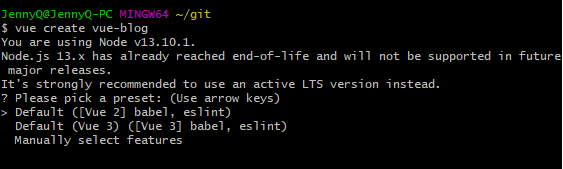
Just use the built in terminal that Visual Studio comes with:

I'm working with Vue 2 and NPM. I haven't messed around with Vue 3 just yet, not sure what the differences are, but I am thinking of creating this lil app with Vue 2 and then creating the exact same thang with v3, and write down what the differences are. #moarcontent #contentisking
First things first, install node, I tend to only use the stable versions vs the current with latest features. You can also check if you have it installed locally by running node -v. I'm working with v13.10.1. Yes, it's a little old but my project is working fine right now.
After that, install the following:
terminalnpm install -g vuenpm install -g @vue/cli
After these packages are installed, we will create a vue app. To do so, type this in your VSCode terminal. Replace your-project-name with whatever you want to call it, e.g. 'my-blog', 'my-vue-blog', 'test-project': vue create your-project-name
Select the Default preset (vue2, babel, eslint)
Select NPM for the package manage
Once this is done, you'll see a message with two commands. This will build your vue app locally, it should load on localhost:8080.
terminalcd your-project-namenpm run serve
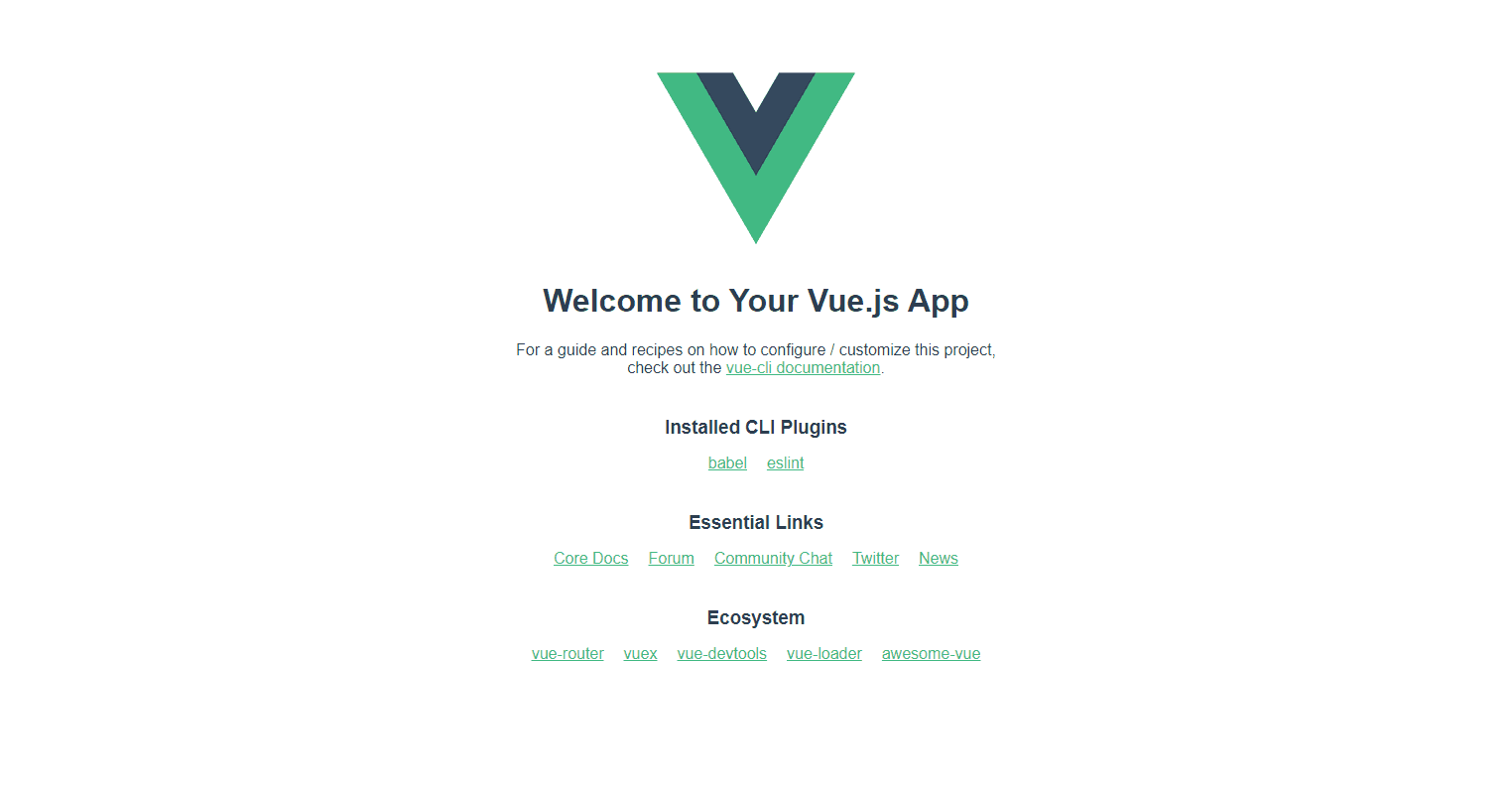
For this project, I'm going to add the bootstrap style sheet to the App.vue file for now. I grabbed the css file from the bootstrap site. I'm using the latest version (as of 10/12/21) which is 5.1.3. Delete any styling that is out of the box in App.vue, and add the following to App.vue
App.vue<style>@import './assets/styles/bootstrap.css';</style>
The css has been added to your app. However, the default page looks really bare, let's add a basic header for now.
Under /components, add a Header.vue file. All of the vue components should be in PascalCase.
Inside the App.vue file, let's add the header component.
Add the new header under the existing HelloWorld component. We'll get rid of HelloWorld after this is set up.
App.vueimport HelloWorld from './components/HelloWorld.vue'//add headerimport Header from './components/Header.vue'export default {name: 'App',components: {HelloWorld,//add our component here, don't forget the comma after HelloWorldHeader}}
In the Header.vue, let's add a default navbar from bootstrap for now. I grabbed this from the bootstrap documentation.
It's important to note, all of your components should be inside one div container within the <template> tags. As you can see below, there is only one "nav" container within the template tags.
Vue<template><nav class="navbar navbar-expand-lg navbar-light bg-light"><div class="container-fluid"><a class="navbar-brand" href="#">Navbar</a><button class="navbar-toggler" type="button" data-bs-toggle="collapse" data-bs-target="#navbarSupportedContent" aria-controls="navbarSupportedContent" aria-expanded="false" aria-label="Toggle navigation"><span class="navbar-toggler-icon"></span></button><div class="collapse navbar-collapse" id="navbarSupportedContent"><ul class="navbar-nav me-auto mb-2 mb-lg-0"><li class="nav-item"><a class="nav-link active" aria-current="page" href="#">Home</a></li><li class="nav-item"><a class="nav-link" href="#">Link</a></li><li class="nav-item dropdown"><a class="nav-link dropdown-toggle" href="#" id="navbarDropdown" role="button" data-bs-toggle="dropdown" aria-expanded="false">Dropdown</a><ul class="dropdown-menu" aria-labelledby="navbarDropdown"><li><a class="dropdown-item" href="#">Action</a></li><li><a class="dropdown-item" href="#">Another action</a></li><li><hr class="dropdown-divider"></li><li><a class="dropdown-item" href="#">Something else here</a></li></ul></li><li class="nav-item"><a class="nav-link disabled">Disabled</a></li></ul><form class="d-flex"><input class="form-control me-2" type="search" placeholder="Search" aria-label="Search"><button class="btn btn-outline-success" type="submit">Search</button></form></div></div></nav></template><script>export default {name: 'Header'}</script>
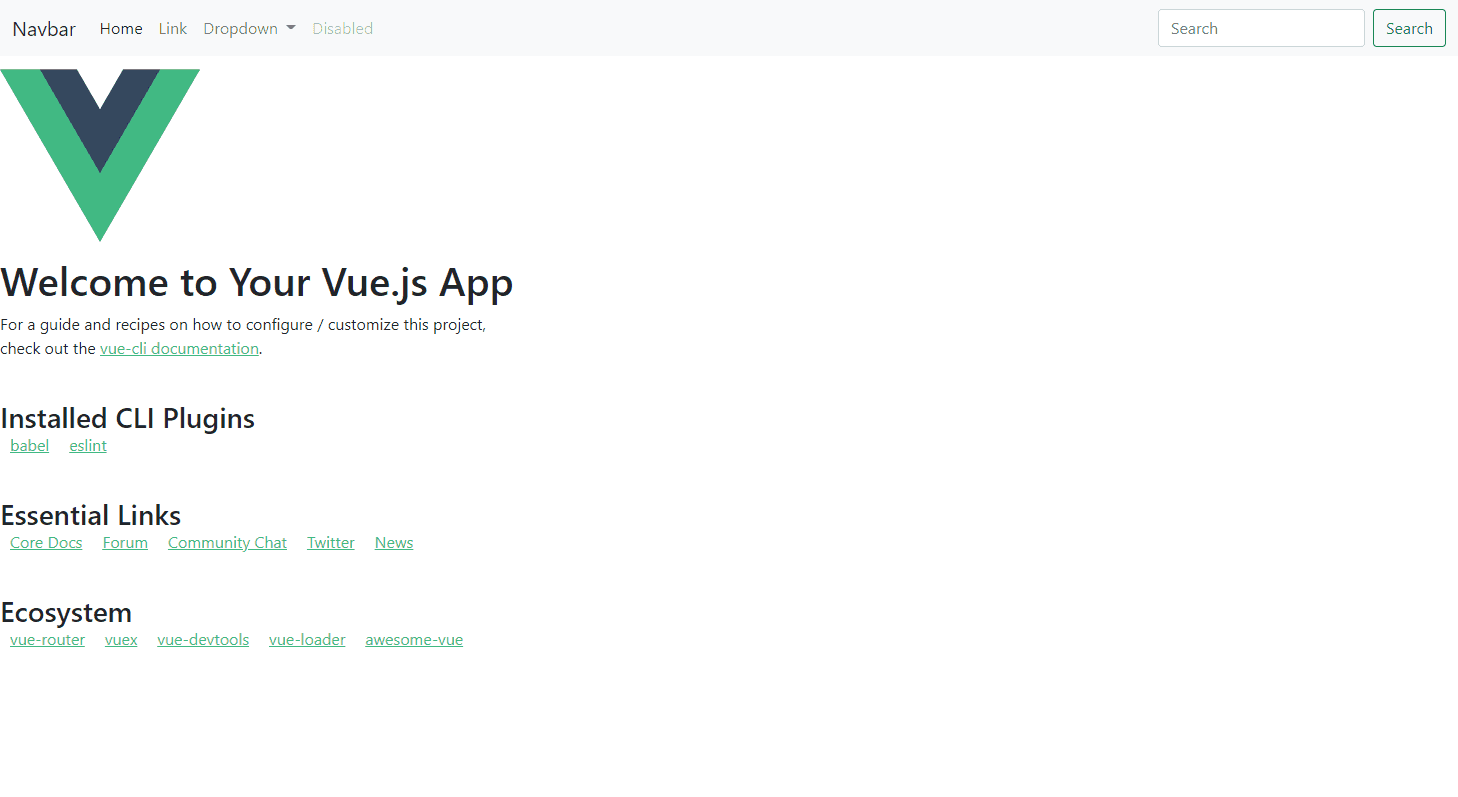
Your local should look something like this. The default vue stuff is positioned to the left now because I removed the default styling within App.vue
In the next post, I'll update the header so it's more "custom", as well as add a footer and some content in the middle.
view all posts